
We already wrote about importing components directly to Sitecore from Figma and Claude Design. Now, it is time for another AI design tool: Stitch!
We will try the same scenario that we did for Claude Design: take an existing website, vibe design for a new component, and import it to Sitecore.
Design.md
Stitch welcomes us with a prompt window. And it suggests starting with a design system document that describes the desired look and feel of your product. Let’s do it.
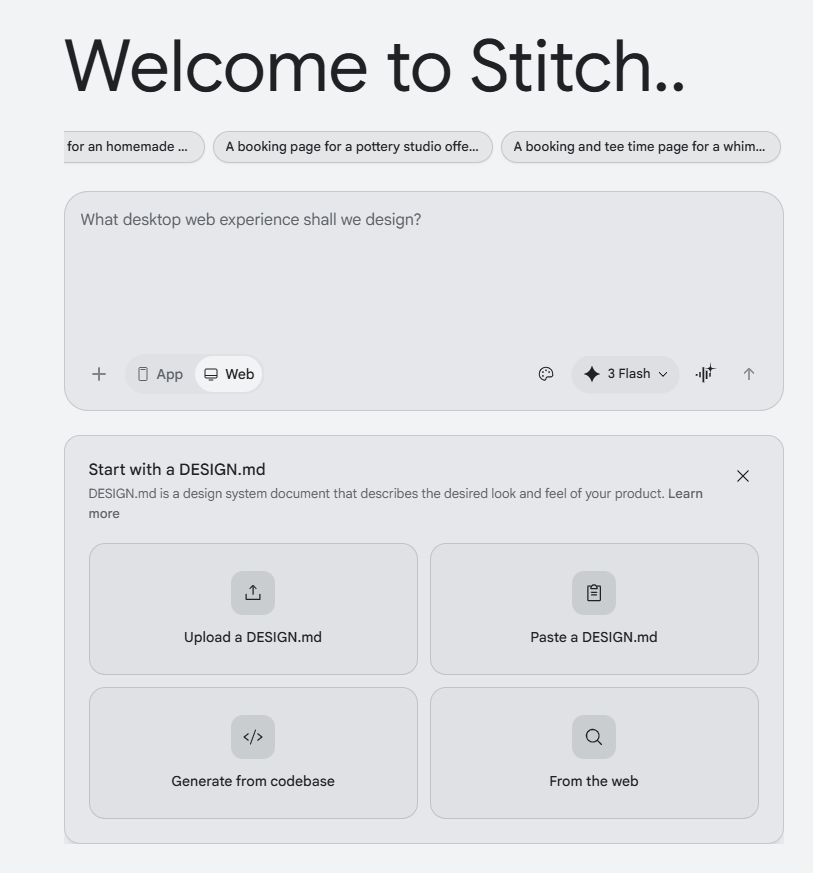
I expected that Stitch would allow me to select a folder on my machine. But instead of it proposes to use an AI agent to generate DESIGN.md file. Ok, I will use Claude Code to do it.
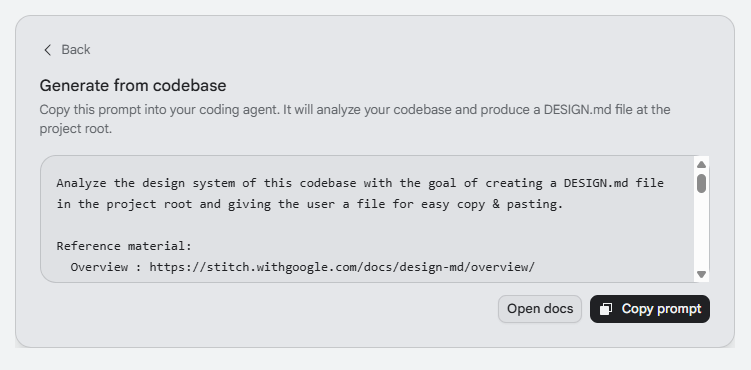
The whole prompt is here. Nothing special. Only references to Stitch DESIGN.md specification format and prompts on how to use it.
Analyze the design system of this codebase with the goal of creating a DESIGN.md file in the project root and giving the user a file for easy copy & pasting.

Reference material:
  Overview : https://stitch.withgoogle.com/docs/design-md/overview/
  Format   : https://stitch.withgoogle.com/docs/design-md/format/
  Spec     : https://github.com/google-labs-code/design.md

Examples from the spec repo:
  https://github.com/google-labs-code/design.md/blob/main/examples/atmospheric-glass/DESIGN.md
  https://github.com/google-labs-code/design.md/blob/main/examples/paws-and-paths/DESIGN.md

Requirements:
- Begin with YAML frontmatter containing all structured design tokens
  (colors, typography, spacing, elevation, motion, radii, shadows, etc.)
- Follow with free-form Markdown that describes the look & feel and
  captures design intent that token values alone cannot convey
- The file must be entirely self-contained — do not reference any
  files, variables, or paths from the codebase
- All token values must use valid YAML design token format

If you have access to a running local server or screenshots of the
product, compare your DESIGN.md against the rendered UI. Revise until
both the YAML tokens and the written description faithfully capture
the product's visual identity.
We can upload or paste our DESIGN.md after Claude Code generated it. It is quite small: 7k tokens and 25 kB.
Designing process
Now we have everything to start with the design. Google Stitch also allows adding images as references. I added one screenshot, as this demo Sitecore website has different themes. Also, I uploaded the design system that we generated before.
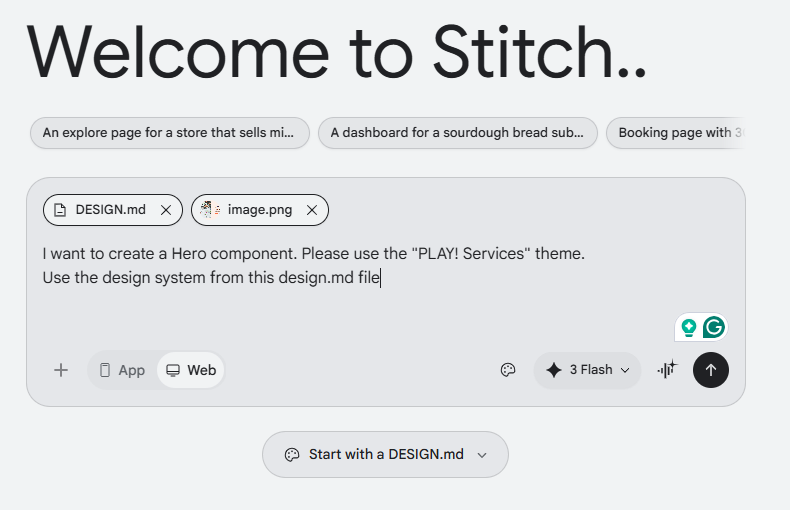
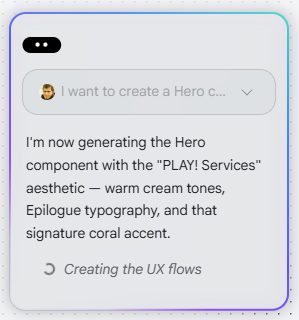
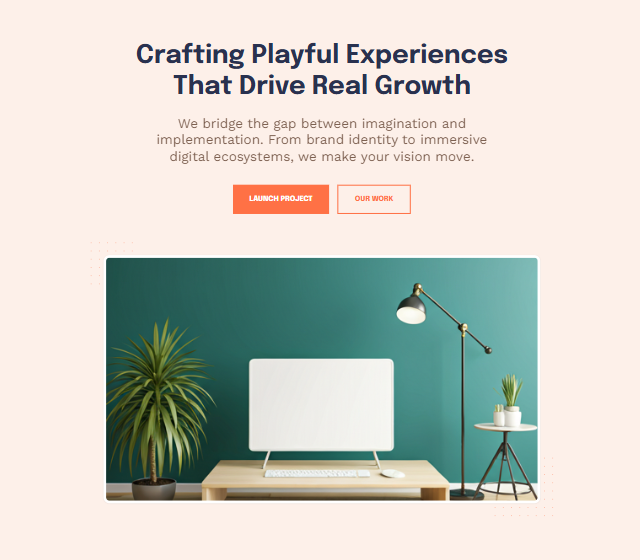
And after about a minute, we got the first variant. The component itself follows the design. But the header and footer feel odd. And we didn’t ask about them.
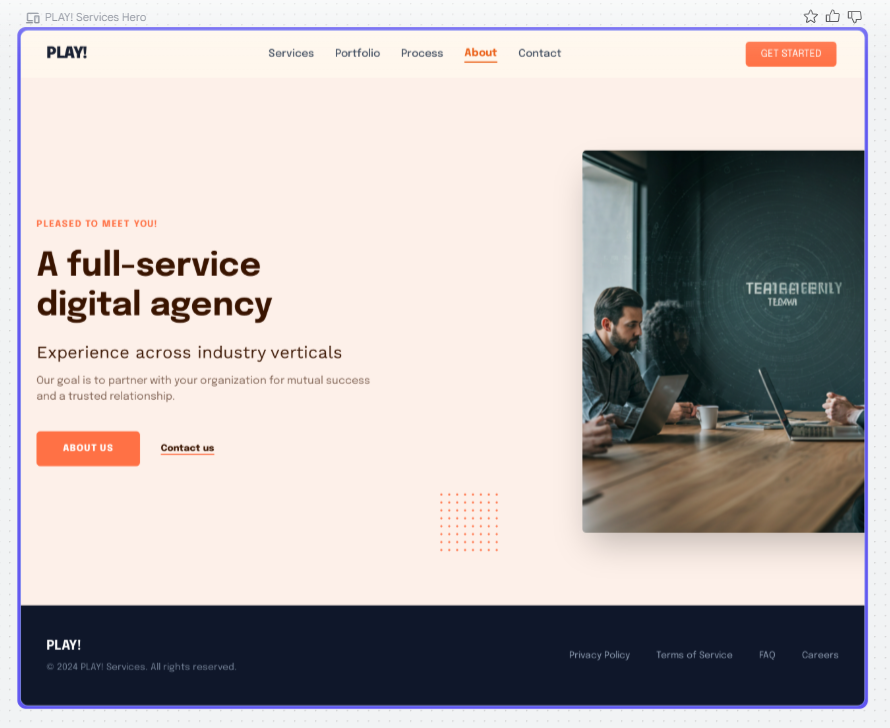
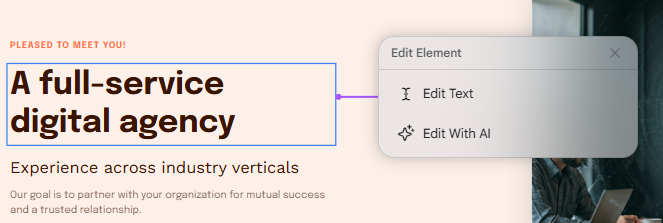
If you don’t like the variant, you have the ability to modify it. Manual modification is very limited compared to Claude Design, where you get a fully-featured WYSIWYG editor in a browser. Here you can change only the text. All other changes should be done by prompting AI.
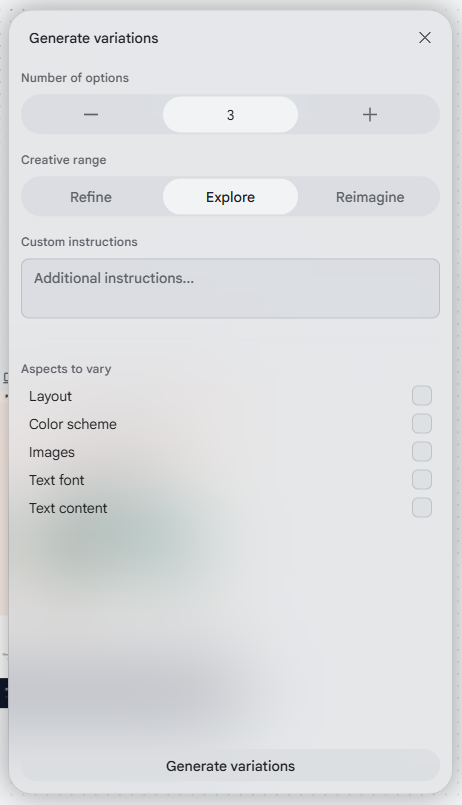
If you don’t like the design that Stitch created, you can generate new variants. You can have as many options as you want. You can make only slight changes with the Refine option, or you can change it drastically with the Reimagine option. Or you can have something in between with the Explore. Also, you can modify only certain aspects of your design: layout, color scheme, font, and content.
And Stitch immediately starts to create new variants. I like that it creates them as separate elements on your canvas. It is nice to have the whole history. You can go back to previous variants at any point. But for some reason, it started to add additional cards below the hero. I didn’t ask about it.
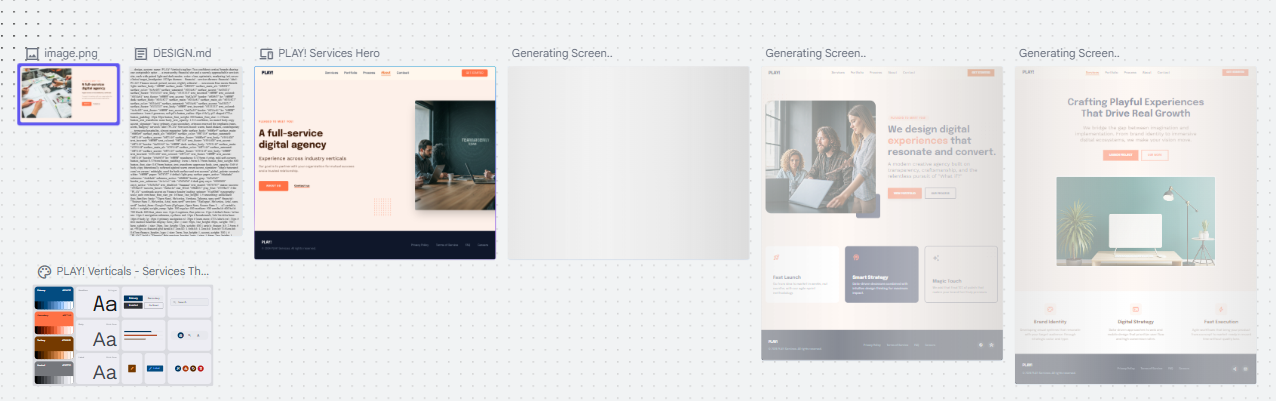
Let’s stop on the last variant.
Export
We have a bunch of options for how to export it: AI Studio, Figma, Jules, .zip, Code to Clipboard, MCP, Project Brief, and Instant Prototypes. It is nice that, compared to Claude Design, we can export it to Figma. Your designers will be happy about it.
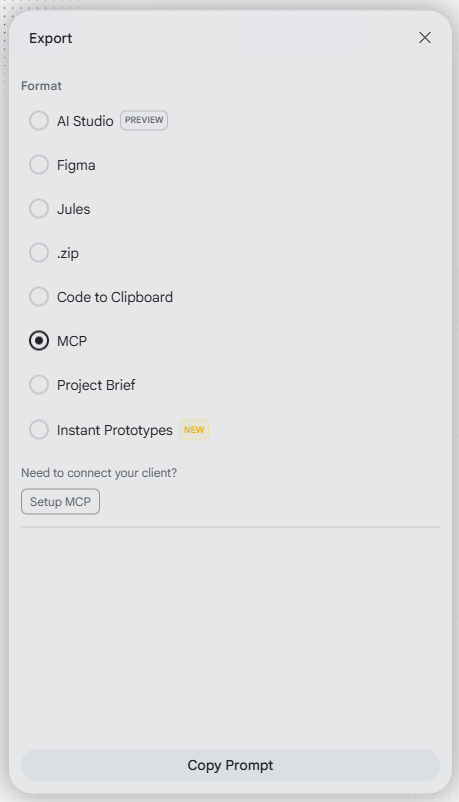
We want to import it to Sitecore. That is why the most straightforward approach for us will be to use the Model Context Protocol server. We will use the Stitch MCP server as the source for design. We will use the Chrome MCP server to check the result. And we will use the Sitecore MCP server to create all required Sitecore items.
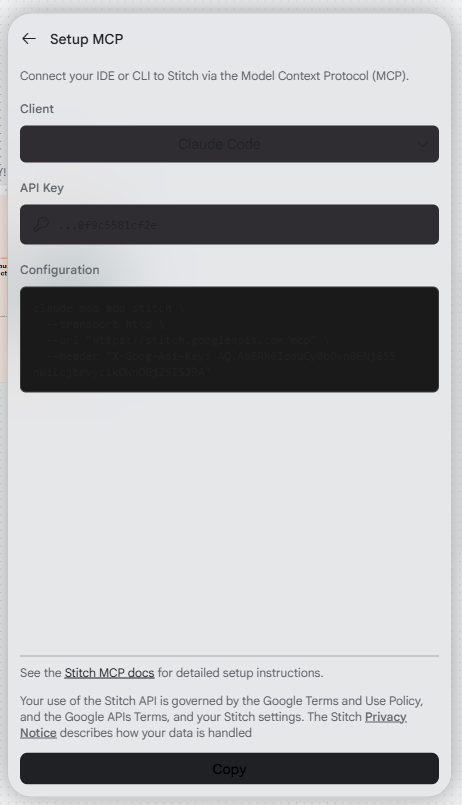
That is not a censored connection and API key. That is a bug in Google Stitch. It is still in beta, so we can forgive it. It is a minor issue. It functions as expected, but has the wrong background color on the UI. Once we configure the MCP server, we can copy the prompt and use it in Claude Code.
## Stitch Instructions

Get the images and code for the following Stitch project's screens:

## Project
Title: PLAY! Services Hero Component
ID: 6024362137857867198

## Screens:
1. PLAY! Services Hero - Centered Layout
    ID: 6afd9fe52a9446e591a15eb4429b8c19

Use a utility like `curl -L` to download the hosted URLs.
We use our usual create-sitecore-rendering command. This command has all instructions on how to create a Sitecore rendering and prepare the test page that contains this rendering.
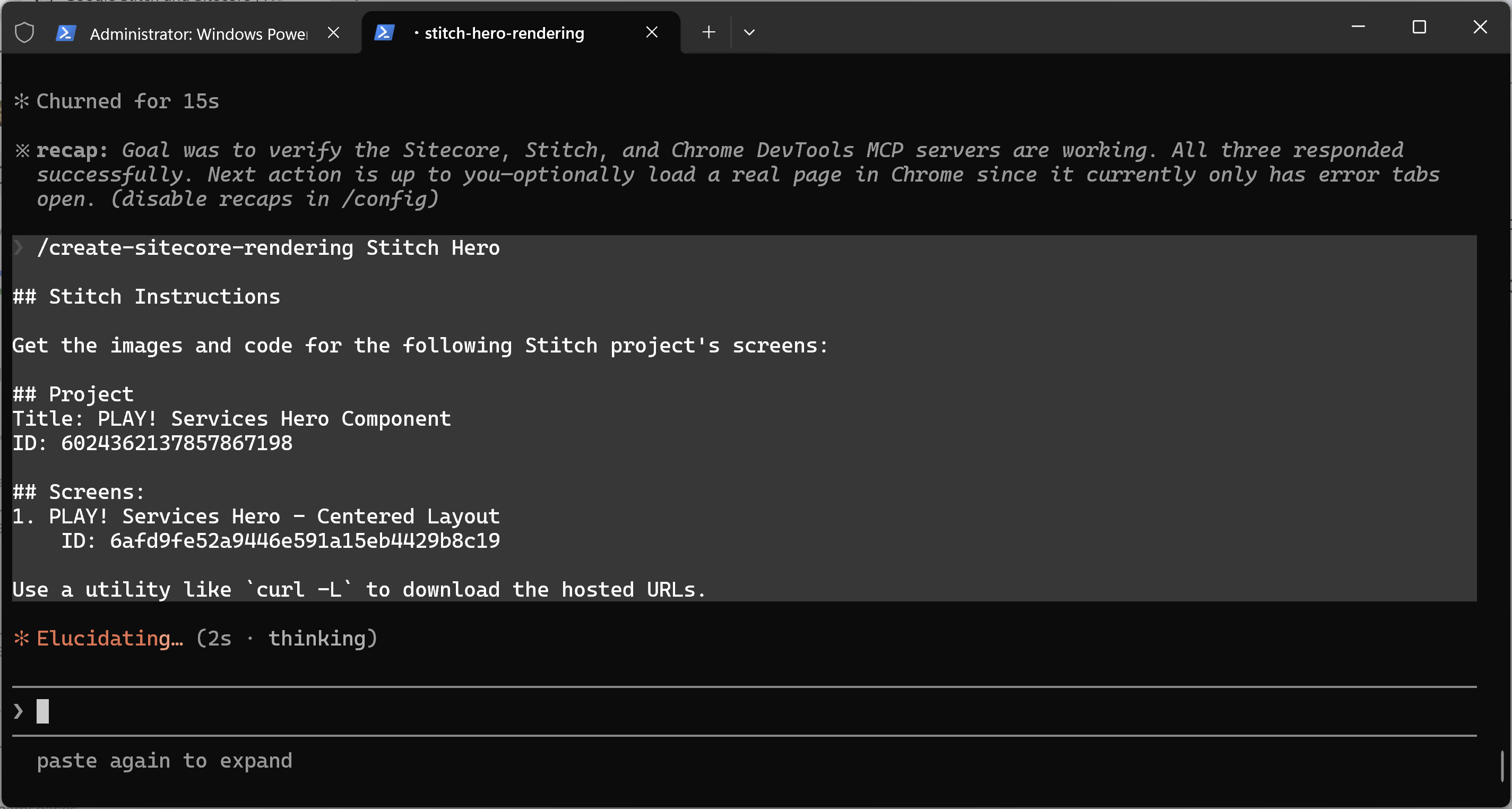
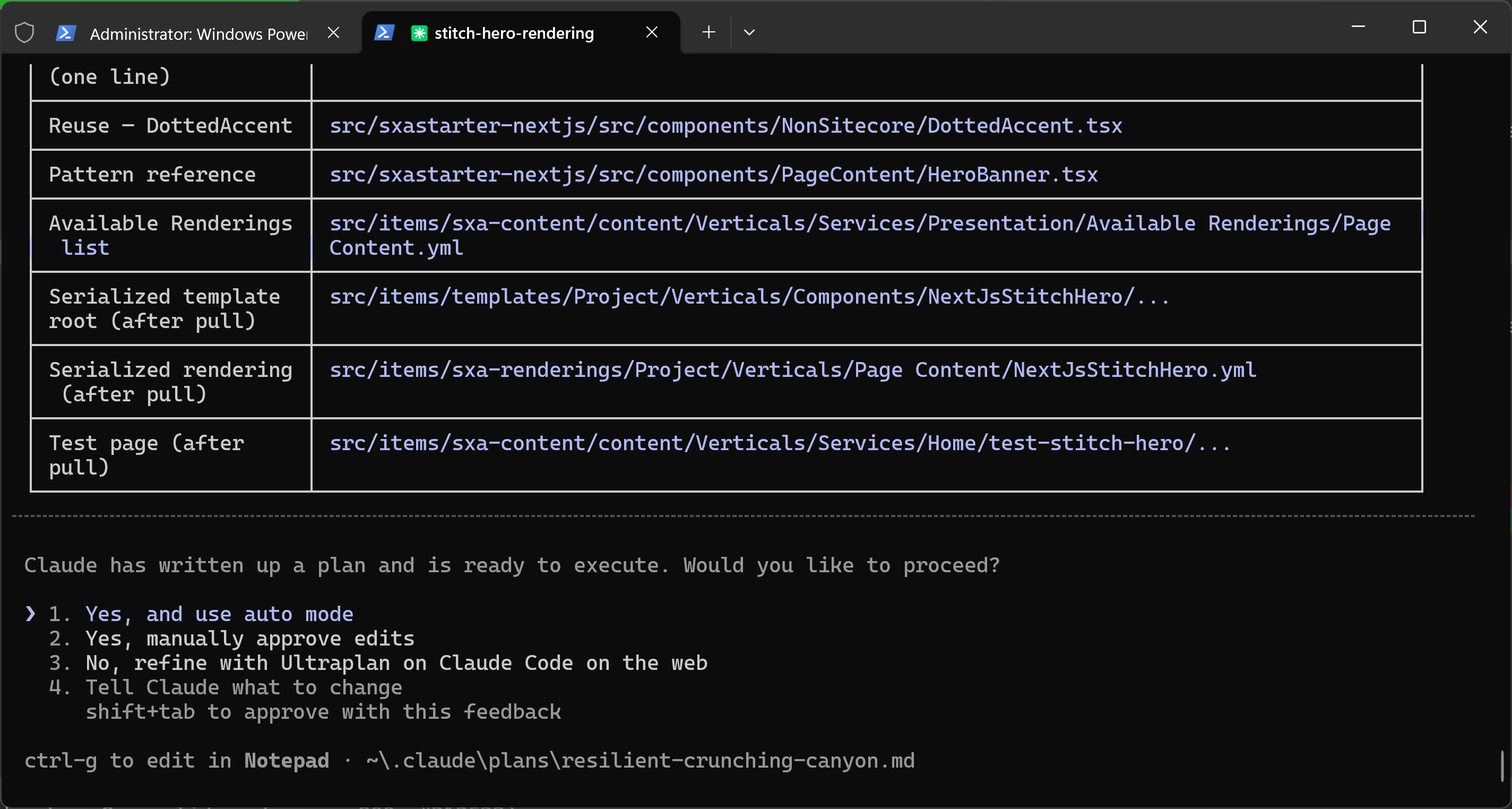
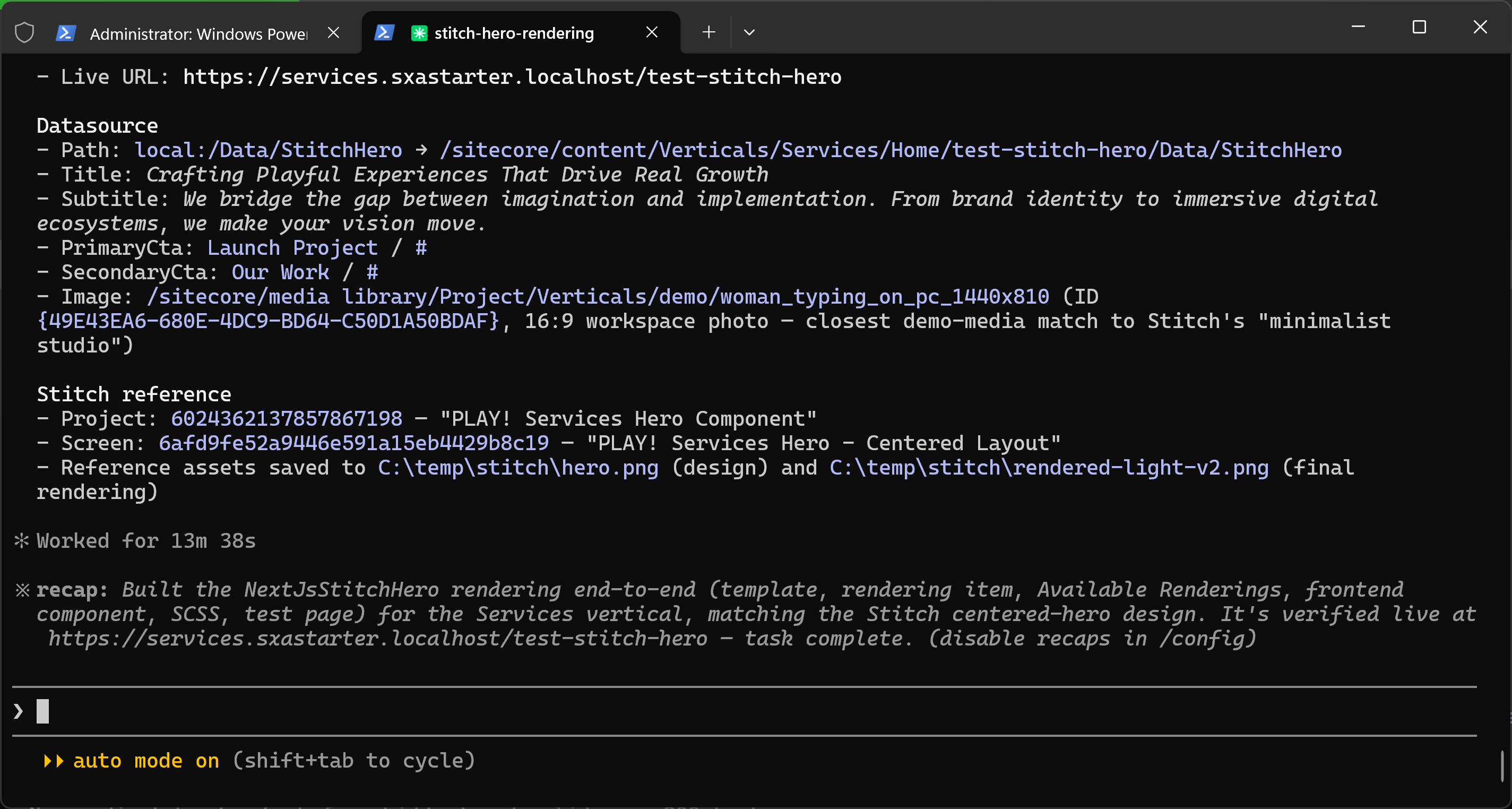
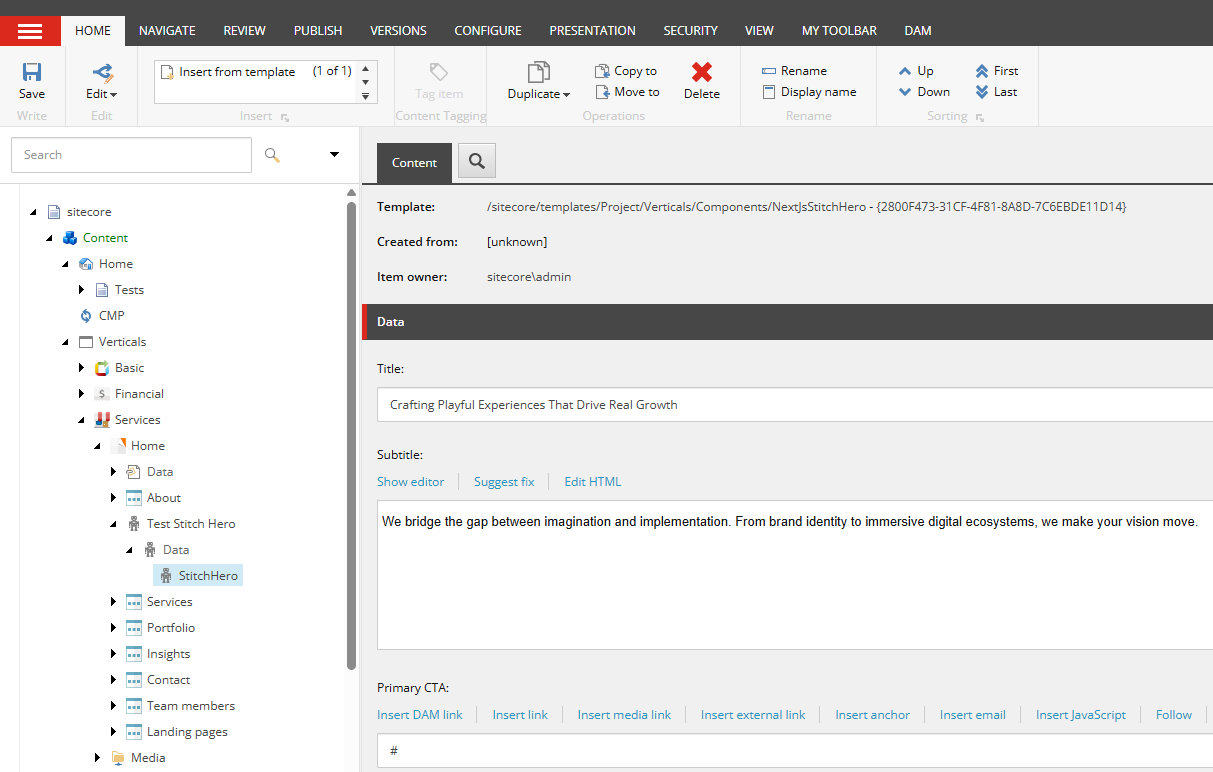
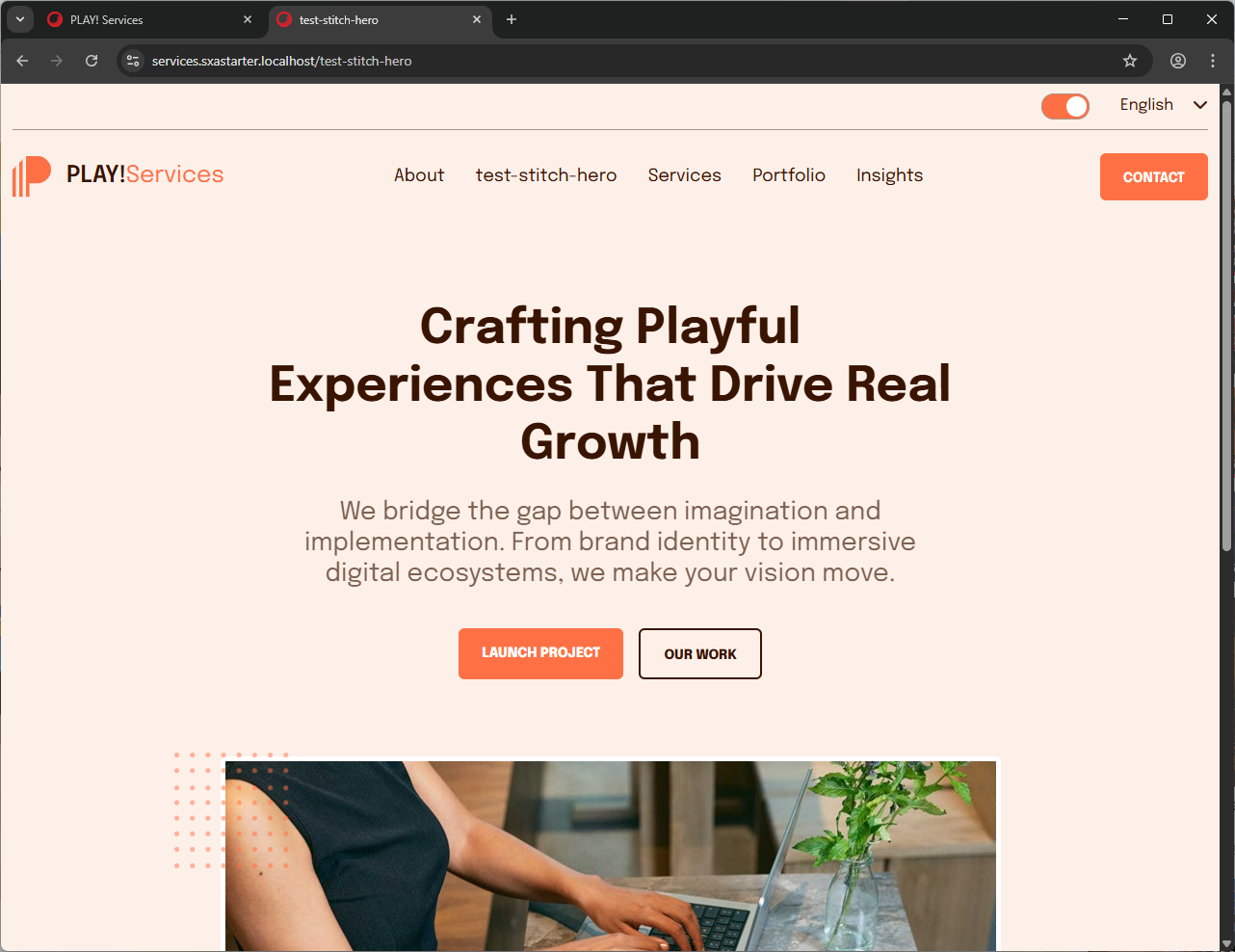
We have a solid workflow for implementing designs to Sitecore renderings. And it does not really matter the source of the design. That is why there is no surprise that Claude Code managed to read the design from the Stitch MCP server and implement it as the Sitecore rendering without any problems.
Conclusions
Google Stitch is another tool for designing with prompting. It is much more focused on designing only by prompting. You don’t have many tools to change anything manually in the current version. All that you have is the ability to select what you want to change and a text field to describe what you want to change.
Stitch requires a few extra steps to prepare the design and send it back to the AI agent compared to Claude Design. It is not an issue if you plan to integrate Google Stitch into your daily routine. But it may be an argument for a one-time task.
My subjective impression: it is worse in designing interfaces compared to Figma Make or Claude Design. Design looks ok, but kind of mediocre. That is not the code that is written by AI that I can objectively review and say if it is good or not. That is just feeling.
It has a built-in MCP server, which allows easy integration with AI agents. And it can be used for your work on the creation of new Sitecore components together with Chrome MCP and Sitecore MCP.
If you want to automate your daily workflow for your Sitecore and frontend developers, then don’t hesitate to contact us. We will help you to select the proper instruments for your work and stitch them together to achieve the significant productivity improvements of your team.