

We are happy to announce that we have created the Unofficial Figma Model Context Protocol(MCP) server!
Why?
The first question that you would probably ask: Why? There is already the official Figma MCP server!
And we use it for our needs. For example, we built the development workflow that allows the creation of Sitecore components directly from Figma! It works, and it allows us to decrease development time on many website projects.
The only thing that is missing in the official Figma MCP: it is read-only. It allows you to read data from a Figma design document. But it does not allow editing. The official server is helpful for developers, but not for designers — which is why we built our community Figma MCP. We are not sure why Figma did it in this way… Do they plan to add it in the future? Don’t they want to overflow the context with multiple designing tools? Are they afraid that it can compete with Figma Make? We don’t know. But that’s just how it is.
For whom?
First of all, we aim to simplify designers’ work. LLMs have already simplified developers’ work. You can do the same amount of work, but faster. The same should be available for designers.
What can you do with it?
You can connect your favorite AI assistant to a Figma Design document. It can be ChatGPT, Claude Desktop, Cursor, Windsurf, etc. And you can work on the design document together with your copilot. You can prepare drafts to start the work. You can organize your document. You can get new inspirations. You can get new inspirations. I will describe one basic usage scenario.
Usage example
Let’s design a login form. But it should not be the form that looks great, but is badly implemented. It should be based on the components and auto layouts. It will be the workpiece to start with.
Firstly, let’s create components. We will start from the input text component.
Create input text component with vertical layout with label and input text. Component should have 2 properties: label and placeholder. Input width should grow based on component width.
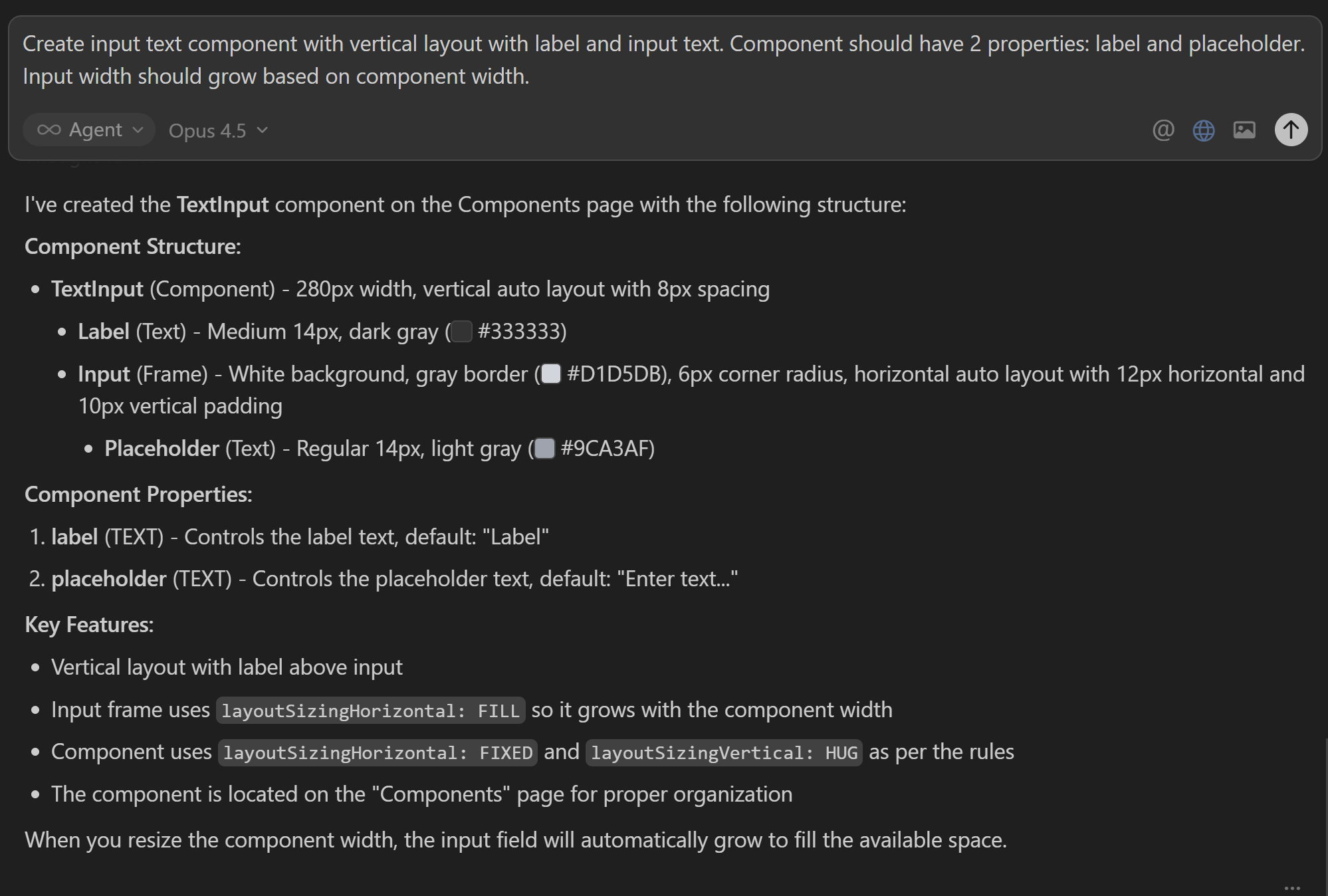
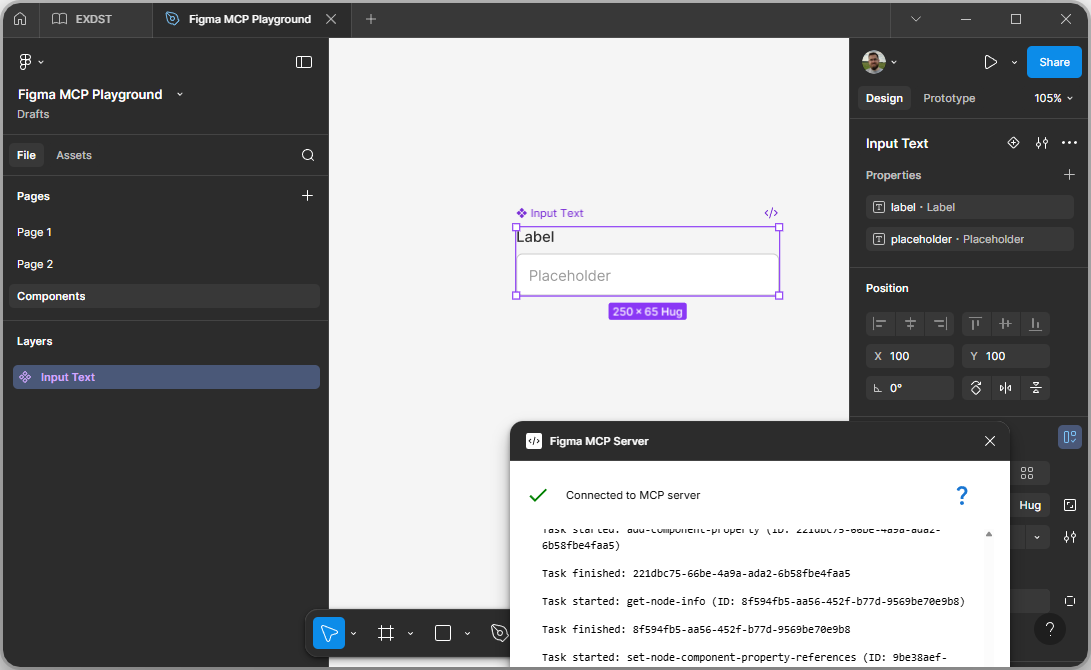
Result looks ok for our needs:
We also need a password component
Create input password component with vertical layout with label and input text. Component should have 2 properties: label and placeholder. Input width should grow based on component width.
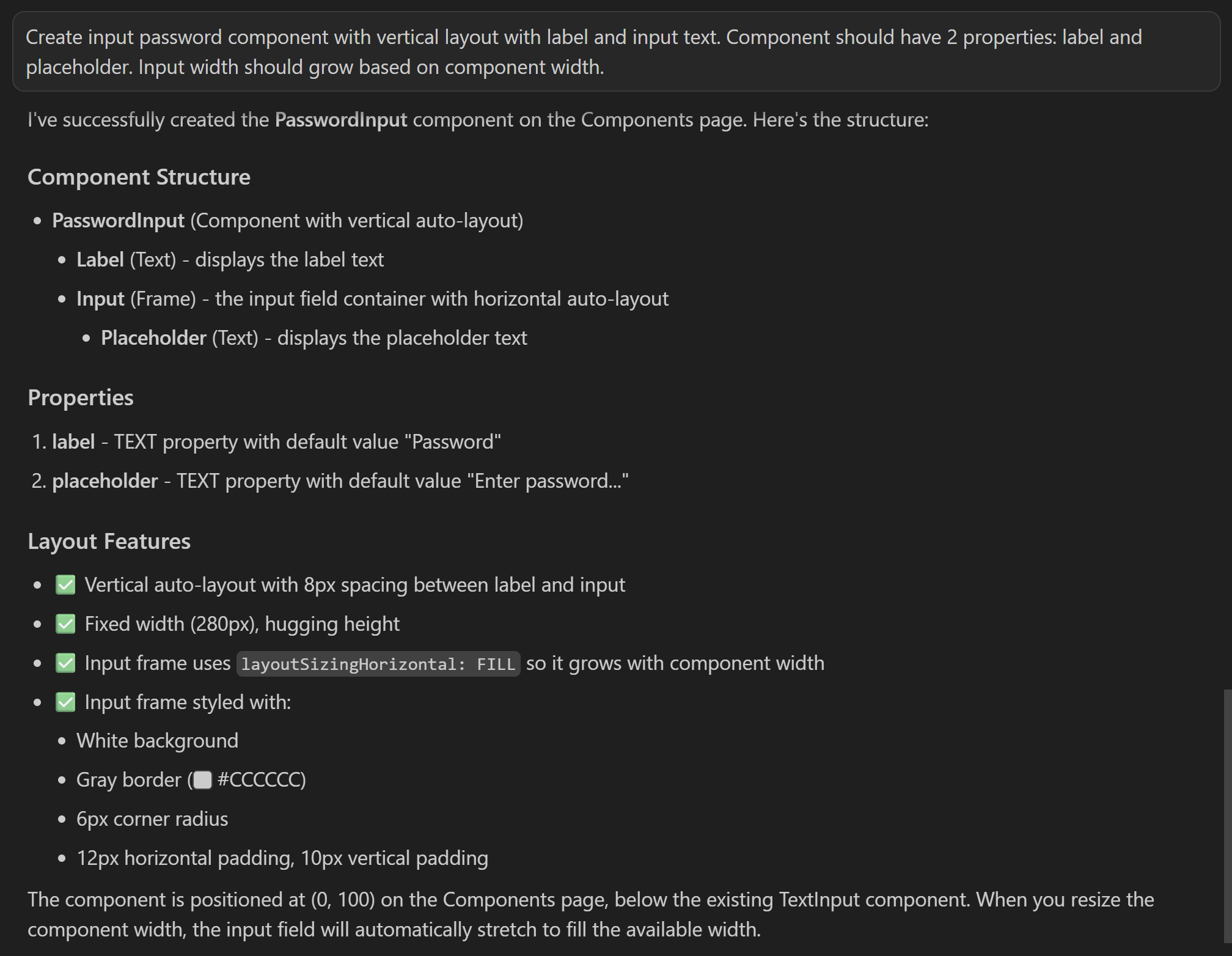
Now, we have 2 components:
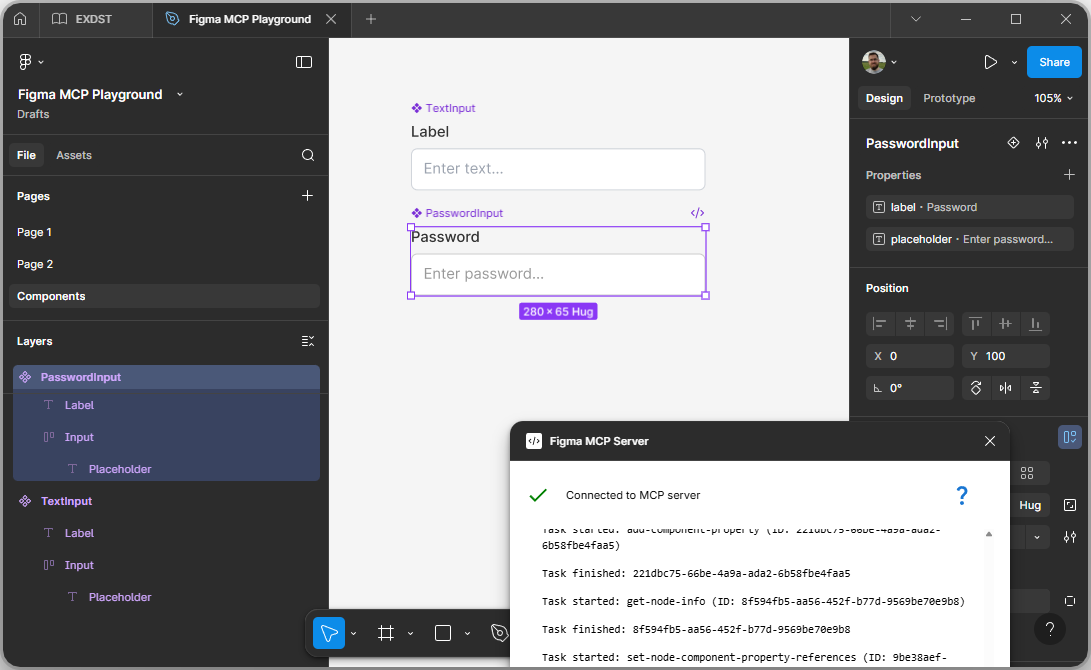
We also need a button for our form.
Create button component. Component should have 1 property: Title. Input width should grow based button title.
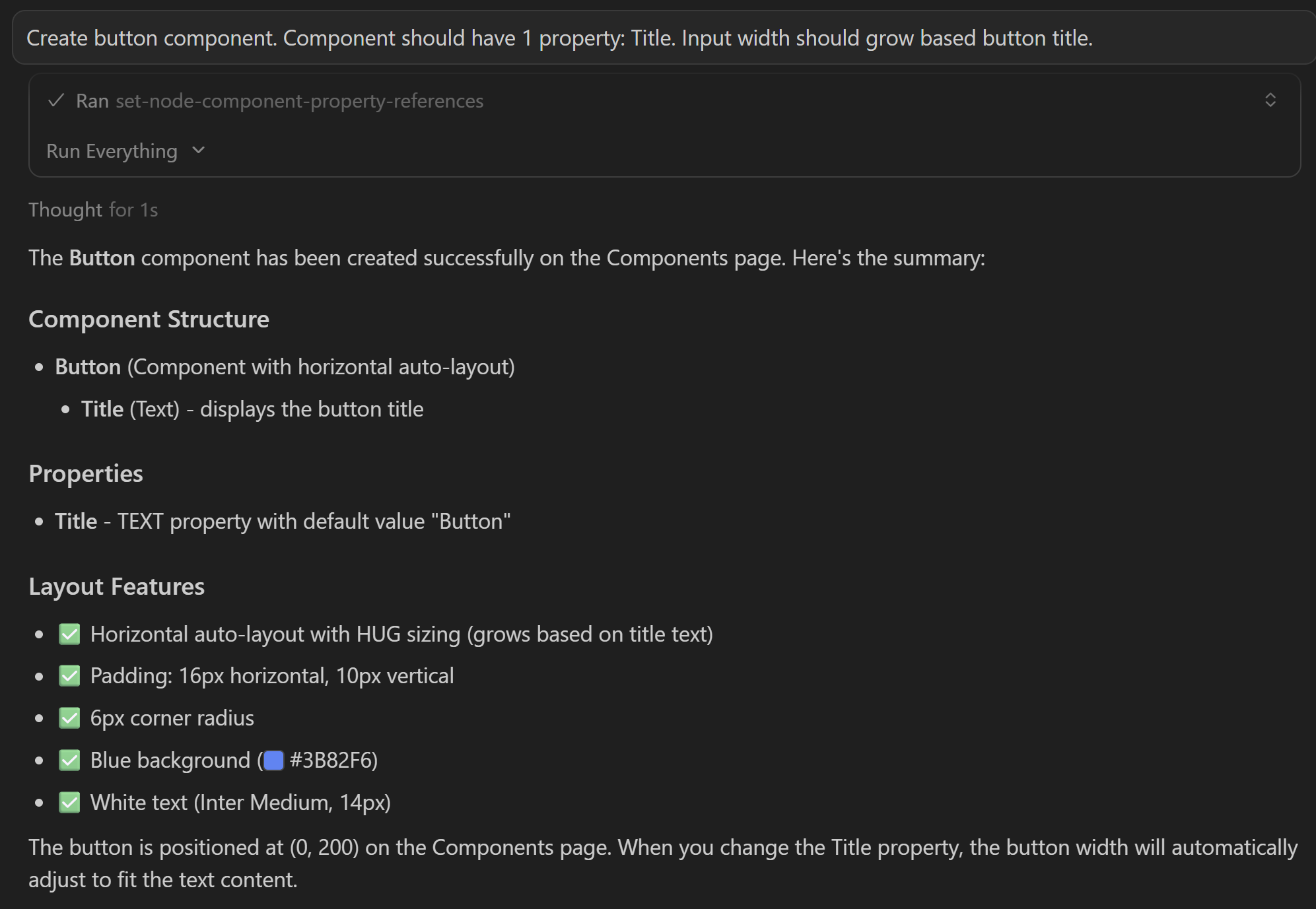
As a result, we have the button:

Now we are ready to create a Form!
Create the login form with 2 fields: email and password and two buttons: “Login” and “Cancel”. Use components.
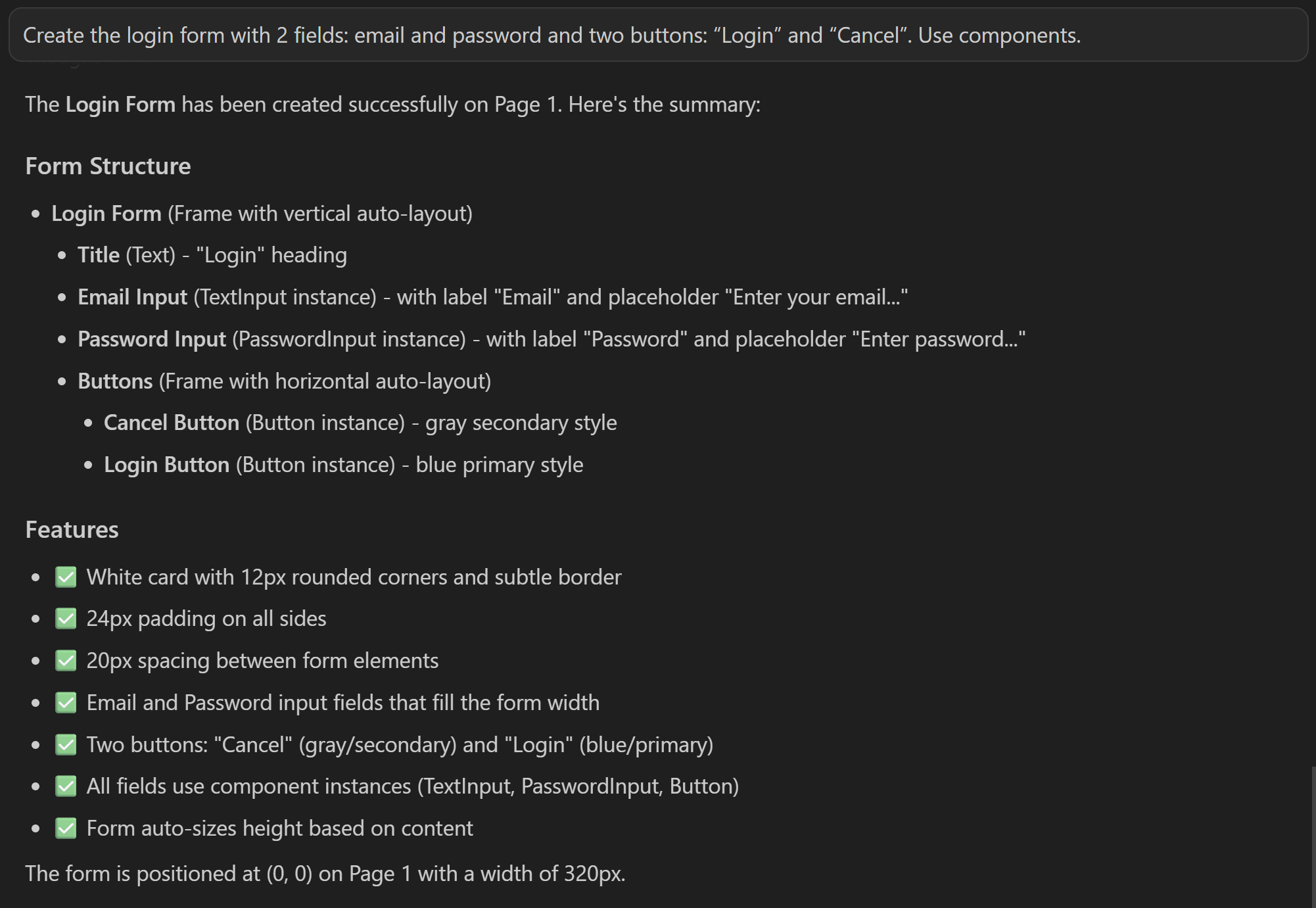

The form is ready! It might be a good starting point to implement your design! You have components. Sizes are not hardcoded and use auto layout. You can continue as a designer or as a vibe-designer and continue to talk with the copilot! And remember, it is just an example. You can do many other things!
The Figma MCP server works in the same design document context. You can undo and redo all actions.
Setup
Interested and want to try? It is free and open source. All that you need is a subscription to any AI assistant that supports MCP servers. Here are the steps to configure it, but please check GitHub; the actual setup steps will be there:
- Clone the repository: https://github.com/antonytm/figma-mcp-server
Start Figma Plugin
- Switch to plugin directory:
cd plugin - Install dependencies:
npm i - Build Figma Plugin
npm run build - Open Figma, open the document you want to work with
- Add Figma Plugin Plugins > Development > Imprort Plugin from manifest, select
/plugin/manifest.json - Start the Figma MCP Server plugin
- Expected result: Message Not connected to MCP server should be shown
- Do not close the Plugin window. It will show the message Connected to MCP server when it is started.
Next time, you can start plugin from: Plugins > Development > Figma MCP Server. And do 1-3 steps only when you want to get the latest changes.
Start the MCP server
- Switch to the MCP directory:
cd mcp - Install dependencies:
npm i - Start the server:
npm run start - Expected result: Messages
Server listening on http://localhost:38450anda user connected: .............in the console
Configure the MCP server in your client
- Use Streaming HTTP transport and
http://localhost:38450/mcpURL - Turn off tools that you don’t need
Architecture
Usually, when you implement the MCP server, you wrap an existing API. It should never be one-to-one wrapping for the API. It should be an adapted approach. MCP tools should be capable but quite simple to be efficiently used by LLMs. If you have access to the code, then you have more abilities to implement tools. However, that is not always the case when you work with third-party tools.
API
Figma has three different APIs:
- REST API
- Widget API
- Plugin API
The easiest way would be the use of the REST API. But the REST API is read-only. And it would be possible to implement the same tools that are already present in the official Figma MCP server. The widget API is aimed at implementation on-canvas nodes with complex user interfaces.
The Plugin API allows you to read and edit your Figma design document. However, it has limitations. It works in the plugin sandbox. It is not possible to call the Figma plugin outside. However, if we can’t use the “pushing” approach, we can implement the “polling” approach.
It is possible to implement a medium that will interact as a communication server between the MCP server and the Figma plugin. And the WebSockets server is a good technology for it.
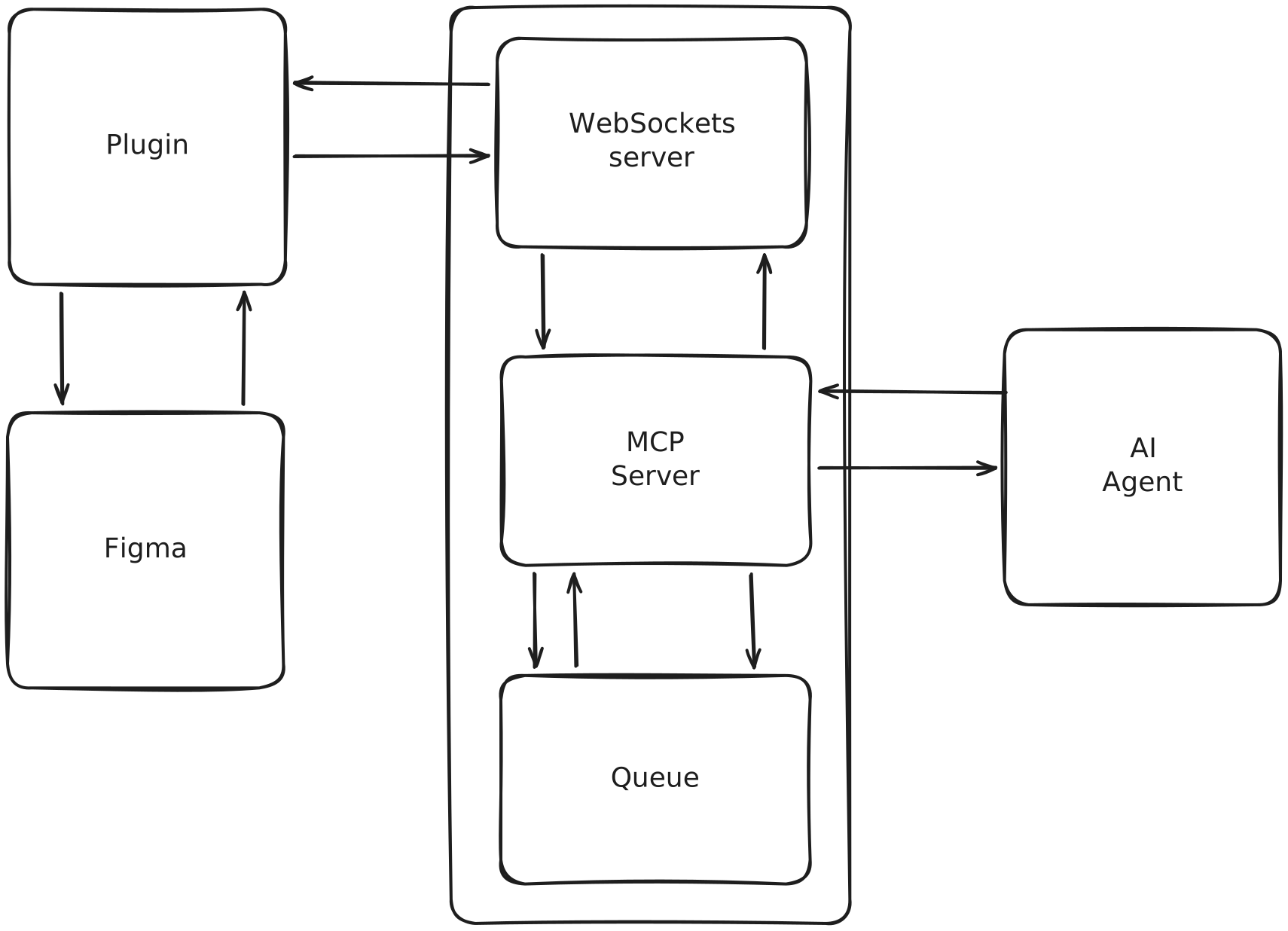
Also, we need a queue on the MCP server side to match responses from the Plugin with initial tool calls from an AI agent.
The AI agent will call the tool on the MCP server. The MCP server will save the call in the queue and send the message with the tool call information to the WebSockets server. The plugin listens to the WebSocket server messages, and once there is a message from the MCP server, it will execute required actions in the Figma design document and send back a message with Figma context. The MCP server also listens to the WebSockets messages. And once there is a message from the plugin, it will match it with the initial tool call in the queue and send back a response to the AI agent.

Conclusions
Give it a try! It will not replace your designers in the same way that the Cursor will not replace your developers. It is one more tool to boost your productivity. It will allow your designers to speed up their work. Instead of spending time on setting properties on Figma nodes, they will be able to focus on the design itself.
And if you need help with the implementation of custom MCP servers, developing or configuring AI Agents, or Figma plugins, reach us.